
For conferences, offsites and company parties
Every event photo, in one place for your team.
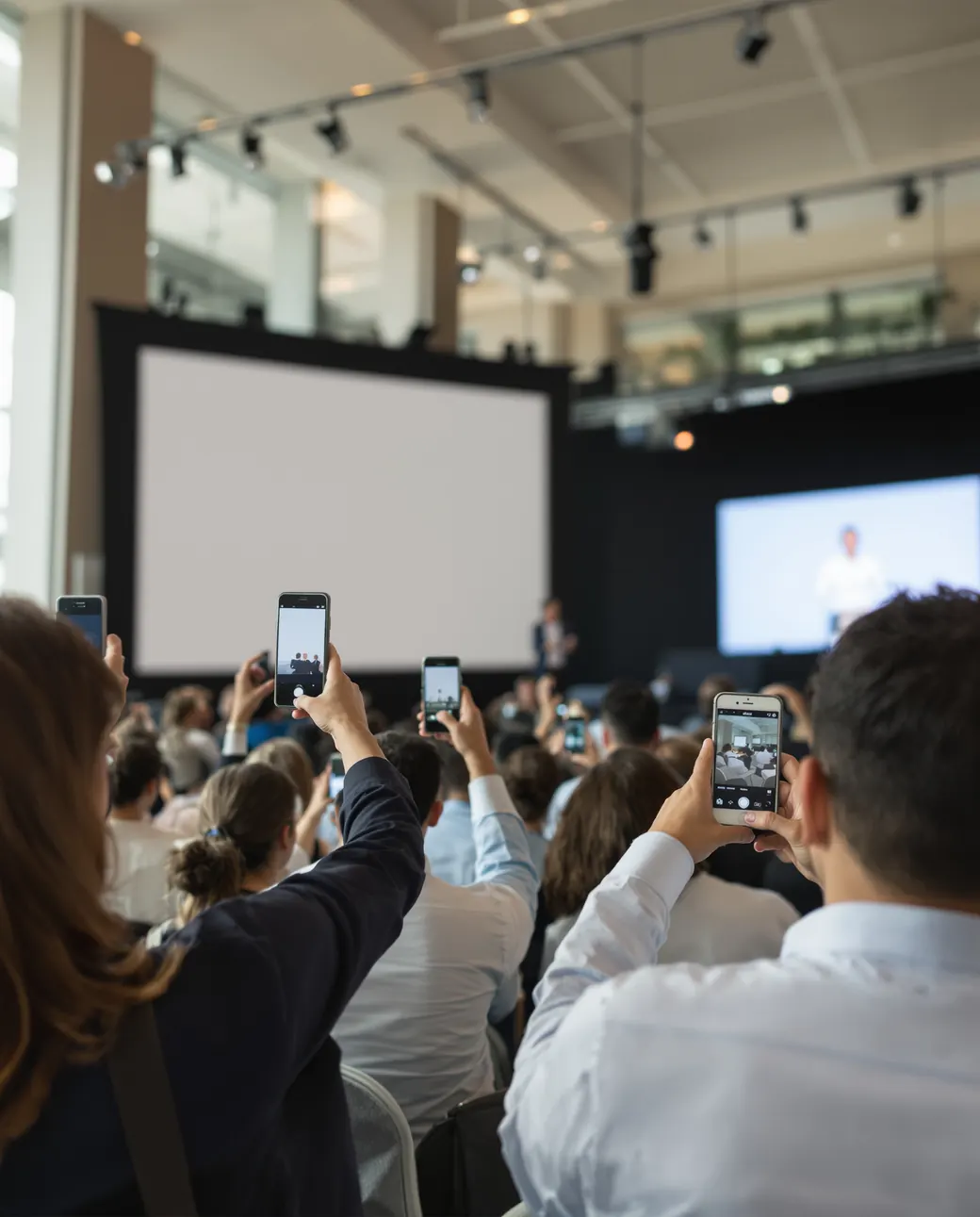
Put a QR code on screens, badges and tables. Attendees add photos and videos from their phones without an app, and your team downloads everything in original quality.
Free for 7 days. No credit card.
Made for every kind of company event
One QR code per event. Every photo and video lands in the same gallery.
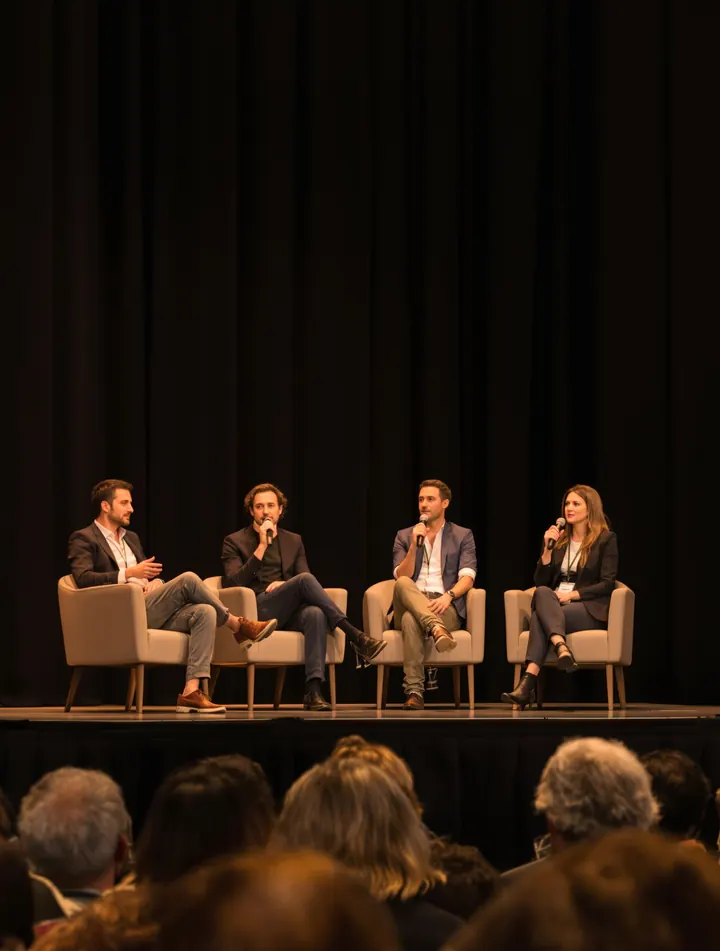
Conferences

Product launches
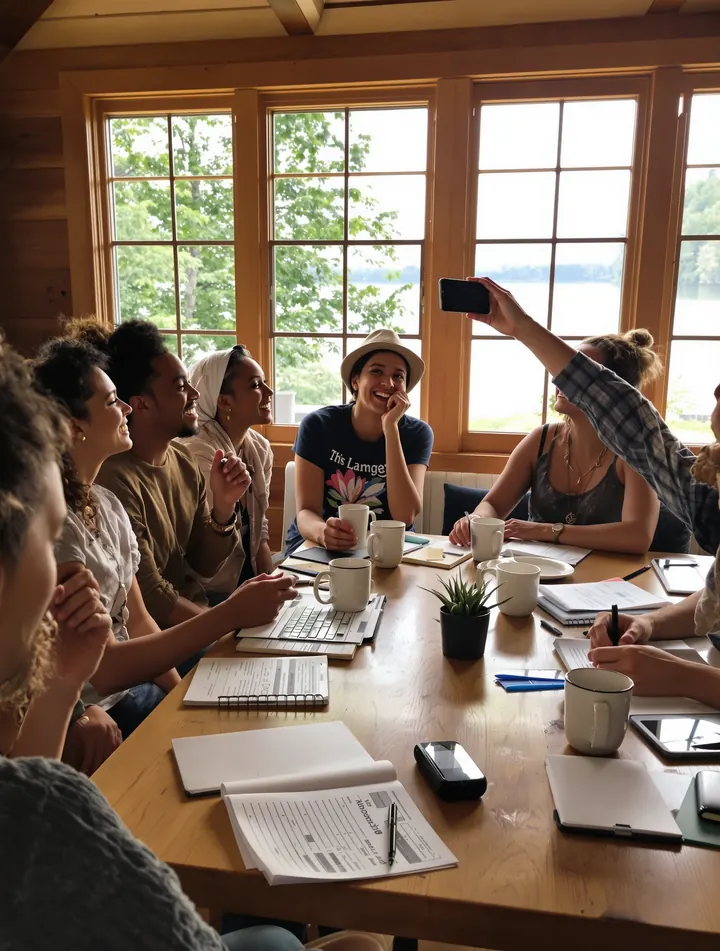
Offsites and retreats

Holiday parties

Award nights

Team days
Badges, screens and tables
Put the code where people look
Show it on screen before the keynote, print it on badges and put it on every table. One code covers the whole event.
- Download the QR code as a PNG for screens, badges, table tents and the registration desk.
- Or start from one of our Canva templates for cards and signs.
- No QR code? Post the link in Slack or Teams, or add it to the attendee email.
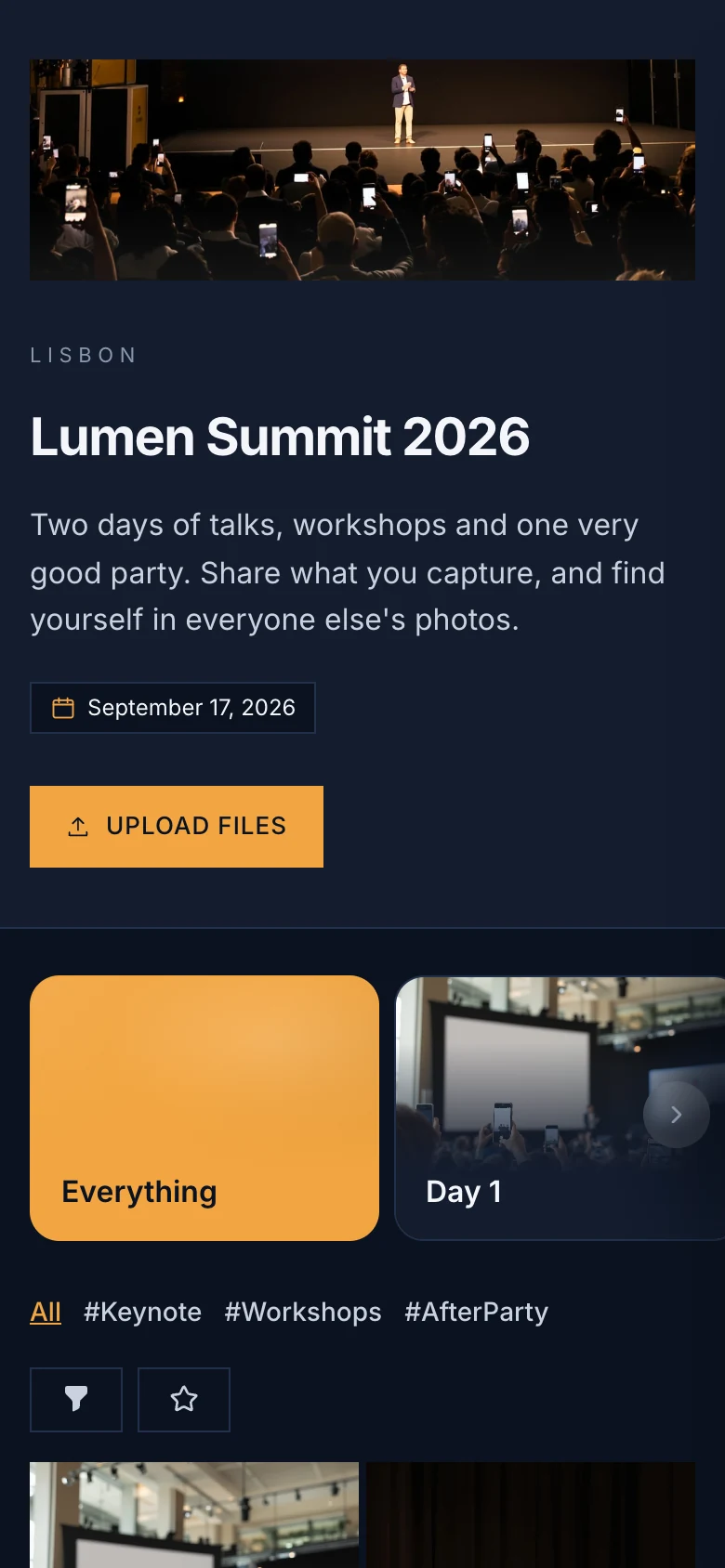
The QR code in this photo is real. Scan it to open a demo company party album, or open it here.
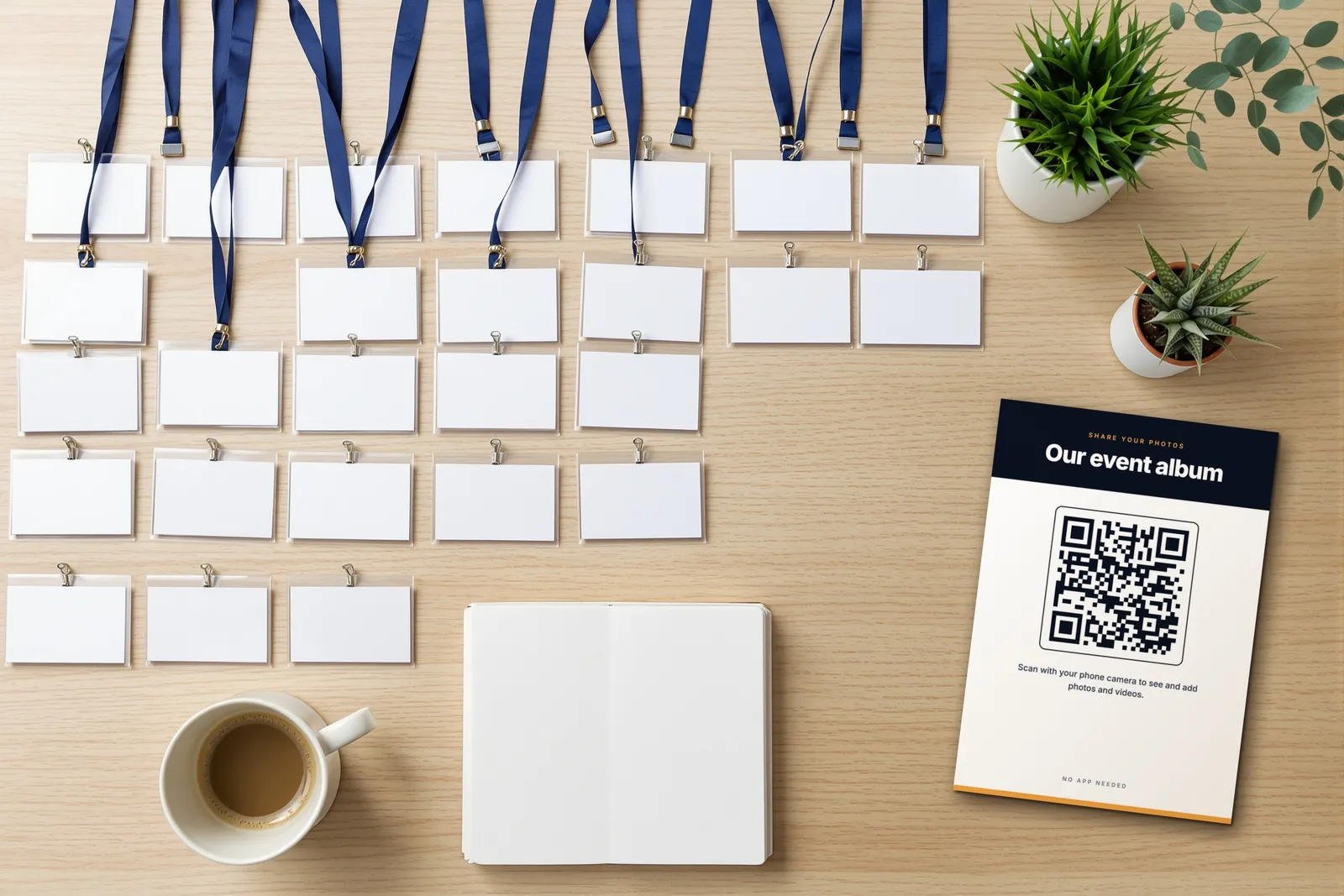
chivent.com/e/lumen-summit Here, for both days. No app or account needed.
How it works at your event
Attendees need a phone camera and nothing else.
Scan the code
Attendees point their phone camera at the QR code on a screen, badge or table card and land on your event page.
Pick photos, an album and a hashtag
They choose photos and videos from their camera roll, then the album and hashtags they belong to, like Day 1 or #Keynote.
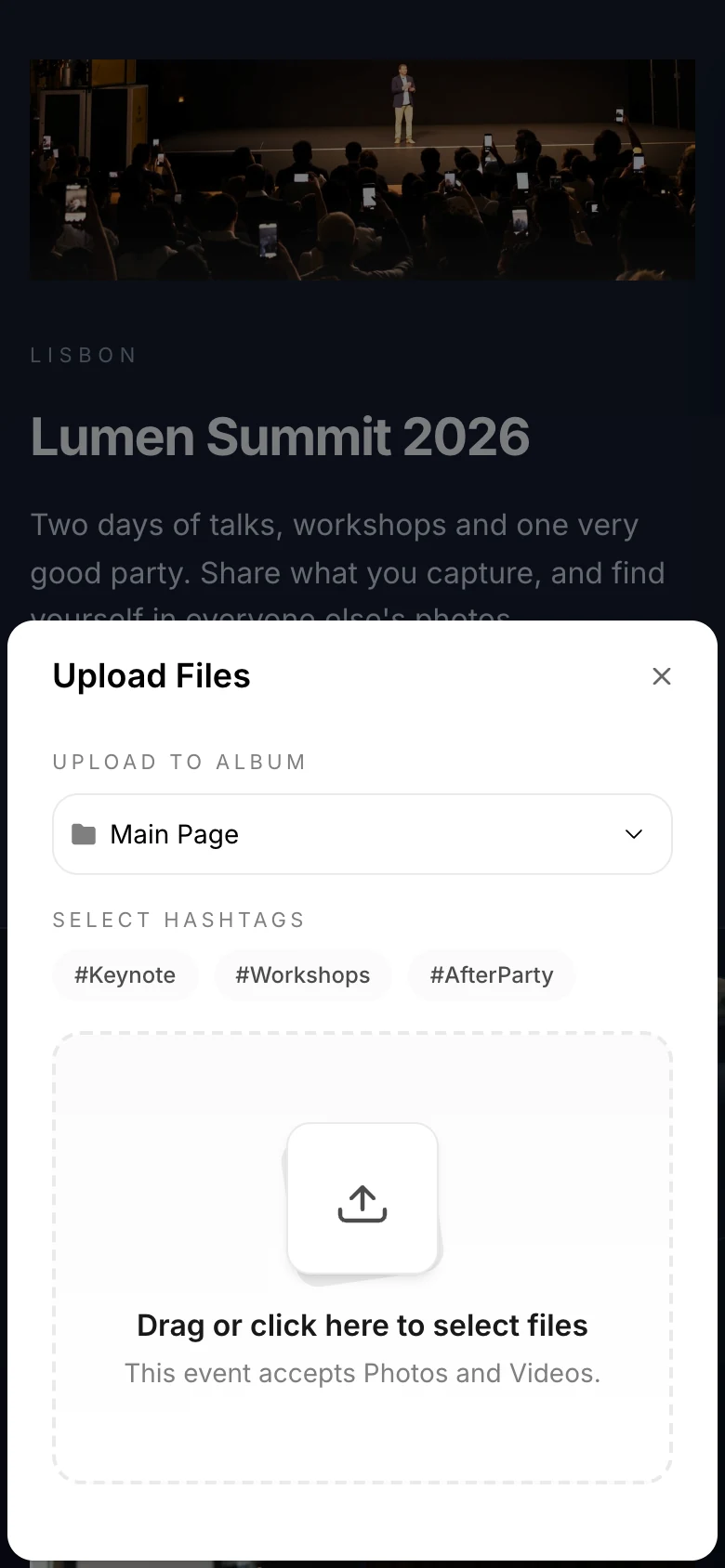
Uploaded, no account needed
Files go up from the browser in their original quality, up to 3 GB each. Nobody installs an app or creates an account.
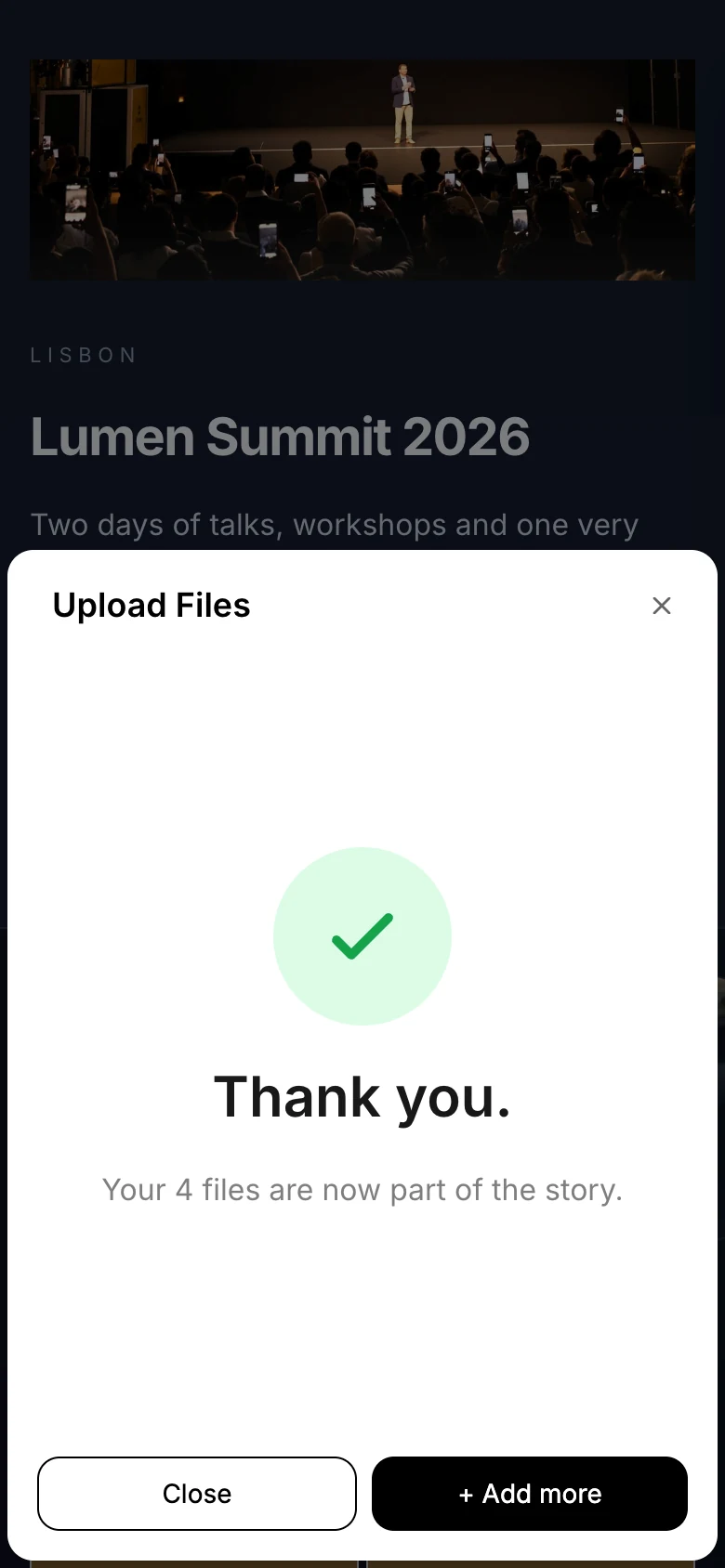
Everyone's photos, sorted
Uploads land in one gallery, sorted by album and hashtag, so the keynote or the after-party is a tap away.

Put the best moments on the big screen
The photo wall turns uploads into a live slideshow at the venue.
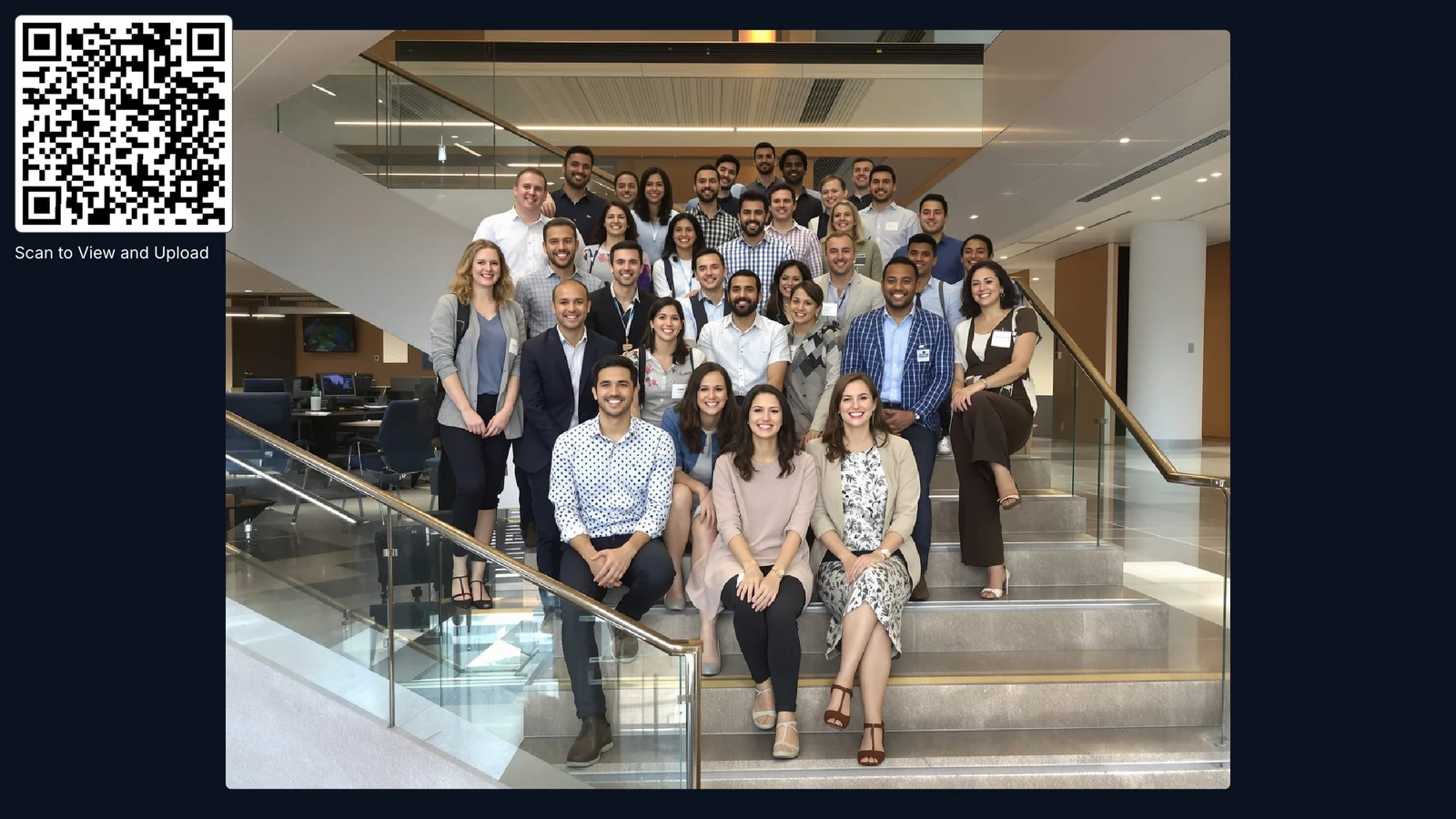
- Live as it happens
- New photos appear on the screen as attendees upload them.
- A QR code on screen
- Show the code in a corner so more people join in.
- Pick what plays
- Show one album or hashtag, like the keynote or the awards.
- Control it from your phone
- Skip, pause or hide the QR code without going back to the laptop.
- Hand it to your AV team
- Share a remote link that works without an account and expires after 7 days.
- Any screen with a browser
- Run it on a TV, a projector or the screens around the venue.
Looks like your company
Set your colors, fonts and header image in the Design Studio. Attendees see your event, not ours.
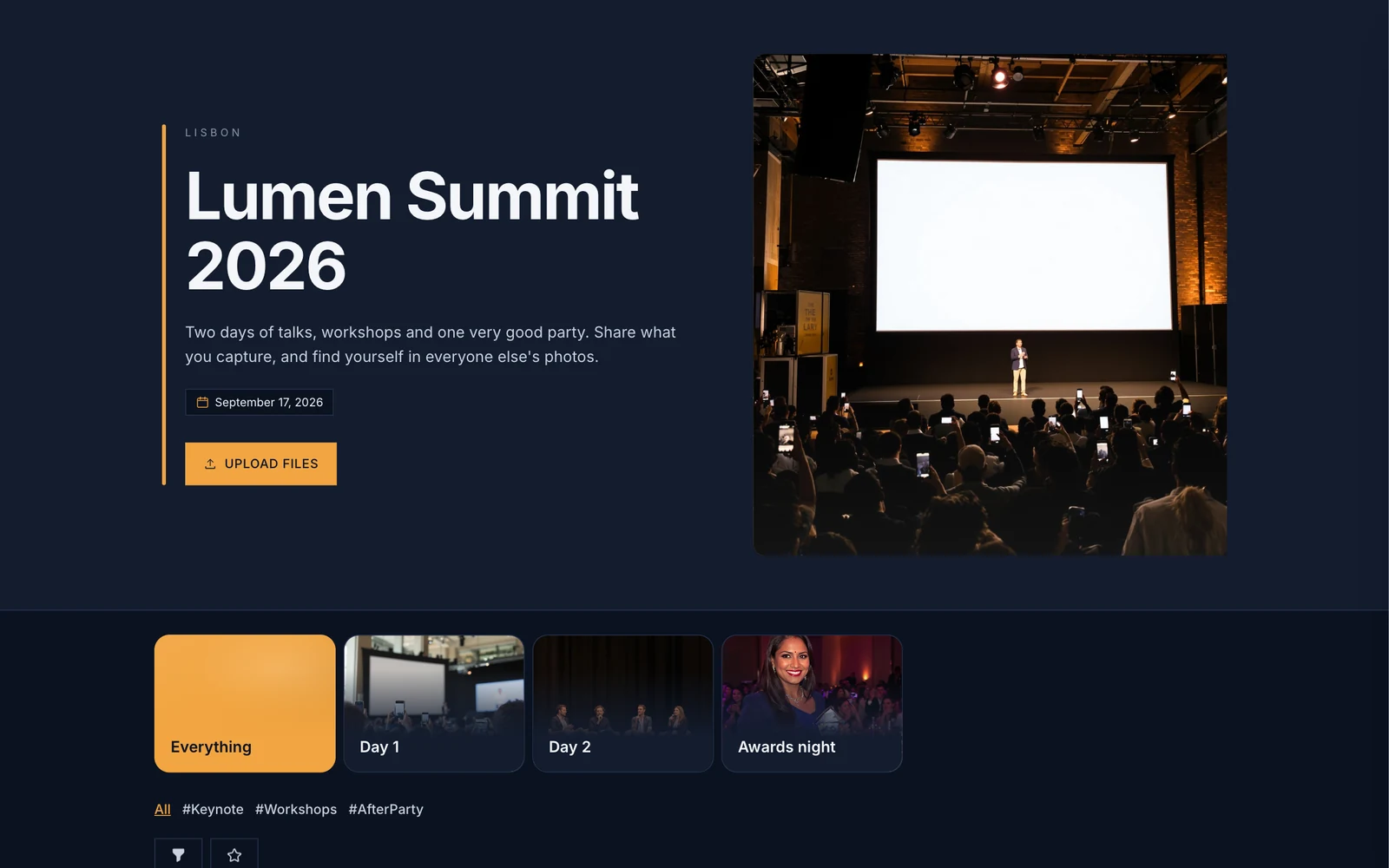
Your colors and fonts
Start from a template or set your own colors, fonts and header image.
No Chivent branding
Paid plans can hide the Chivent logo from your event pages.
Your own event link
Included in subscriptions, or $5 as an add-on to a one-time plan.
In 12 languages
Guest pages follow the language of each attendee's phone, which helps at international events.
- English
- Deutsch
- Nederlands
- Svenska
- Français
- Italiano
- Español
- Português
- Türkçe
- עברית
- 日本語
- 한국어
You decide what gets shared
Set it up per event in your dashboard, and change it whenever you need to.
- Approve uploads
- Check each photo and video before it appears for everyone.
- Approve comments
- Comments wait for your approval before they show.
- One shared password
- Keep the event page private with a password you give attendees.
- Ask for names
- Attendees enter their name before they browse, and you can show it on their uploads.
- Own uploads only
- Let attendees see only the files they added themselves.
- Up to 10 co-hosts
- On paid plans, colleagues can help you run the event.
- Hidden from search engines
- Event pages are set so search engines don't list them.
- Choose where files live
- Store each event's files in Europe, North America or Australia.
Ready before the doors open
Four steps from sign-up to a QR code on the screen.
Create your event
Sign up and create the event. The free trial needs no credit card.
Add your brand
Set your colors, fonts and header image in the Design Studio.
Share the QR code
Show it on screens, badges and table cards. Canva templates help with cards and signs.
Download everything
After the event, download every file as a ZIP in original quality.
Pricing
One event or every event
Try it free, pay once for a single event, or subscribe if you run events all year.
Free trial
$0for 7 days
- Up to 20 photos and videos
- Guest uploads, gallery and photo wall
- No credit card needed
Downloading everything at once needs a paid plan.
One event
from$19.00one-time
- Open for 1 to 12 months
- 100 to unlimited photos and videos
- Download everything in original quality
- Hide Chivent branding
- Up to 10 co-hosts
For example, 6 months, 500 files, 5 albums: $37.00.
Subscription
from$39.99/ month
- Unlimited events
- 50 GB or 250 GB of shared storage
- AI photo tagging and design help
- Your own event link
- Cancel anytime
Prices in US dollars. VAT is added at checkout where it applies.
Questions event teams ask
More answers in the Help Center.
Do attendees need an app or an account?
No. They scan the QR code with their phone camera and upload in the browser. Asking for their name is optional.
Can we approve photos before they appear?
Yes. Turn on upload approval and every photo and video waits for your approval before it appears. Comments can need approval too.
Can the event page carry our brand?
Yes. Set your colors, fonts and header image in the Design Studio. Paid plans can hide Chivent branding, and your own event link is included in subscriptions or costs $5, €5 or £3 as an add-on.
We run several events a year. Which plan fits?
A subscription. It includes unlimited events with 50 GB or 250 GB of shared storage, from $39.99 a month, and you can cancel anytime.
Can colleagues help run the event?
Yes. On paid plans you can add up to 10 colleagues as co-hosts to help you manage the event.
Where are the files stored?
You pick the storage location for each event: Europe, East or West North America, or Australia. Choose the one closest to your event for faster uploads.
What can attendees upload?
Photos in JPEG, PNG, HEIC and WebP, and videos in MP4 and MOV, up to 3 GB per file.
How do we get everything after the event?
Download every file as a ZIP in original quality, or pick single files. Downloading everything at once needs a paid plan.
Give your next event one shared album.
Start free, add your brand and share the QR code. Your team gets every photo in one place.